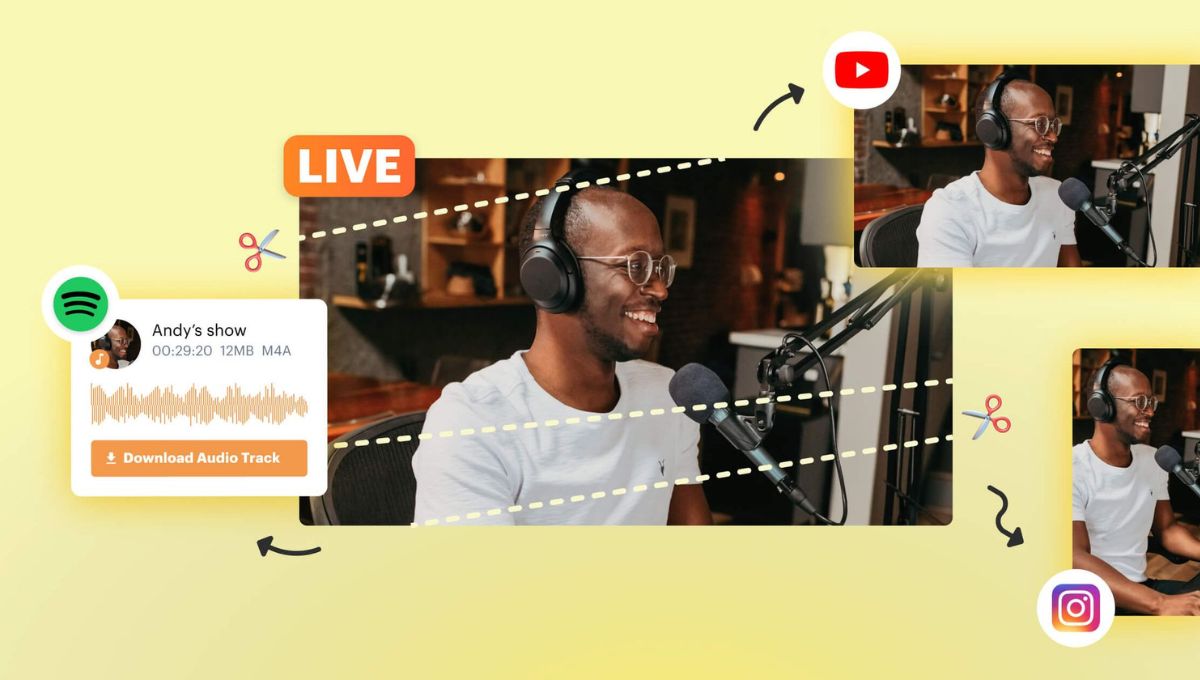
A finished video rarely ends at the final upload. Once the main edit is done, the same footage can usually support shorter clips, text posts, carousels, and follow-up ideas — if you separate the strong moments from the parts that only work in context.
The goal is not to chop the same file into random fragments. Each new piece should answer one small question or make one point. That is how you repurpose video in a way that feels planned instead of recycled.
Start With a Source Video That Has Clear Sections
Plan the main video in sections, even if the final edit feels casual. A clean shift gives you ready-made places to pull short clips, text posts, or carousel ideas later.
If the same recording may appear across several channels, a social media content creation plan also helps you decide which parts need a clean intro, a separate visual, or a shorter version.
A useful source video has a clear opening promise, sections that make sense alone, and visual moments that add something beyond what’s being said. A creator filming a home studio setup could divide it into camera placement, lighting, microphone position, background cleanup, and export settings.
Markers help. During the first edit, label strong openings, useful examples, mistakes, reactions, questions, numbers, and demos. You are making a map of usable moments while the project is still fresh.
Choose Moments That Can Stand Alone
A short clip should make sense to someone who has never seen the full upload. The first seconds need context, and the final line should close the thought. The best cutdowns usually open with a clear problem or visible result, then conclude before the clip starts to feel borrowed from a longer video.
This is where creators often go wrong when they repurpose video content. They pick the loudest moment, the funniest aside, or the biggest facial reaction, then the clip feels thin. Strong cutdowns usually come from useful segments: a quick fix, a clear before-and-after, a compact opinion, or a question people already search for.
10 Pieces You Can Pull From One Video
- The full main video. This is the anchor. It can live on YouTube, a course page, a blog post, or a community hub. Give it a clear title, chapters, and a description that mentions the main points.
- A 60-second vertical summary. Turn the full video into the shortest complete version of the idea. Use one opening line, two or three supporting points, and a final takeaway.
- A 20-second teaser. Use a result, a surprising detail, or a question from the middle. End with a line that points to the full upload, while keeping the clip useful by itself.
- A single-tip clip. Pull one tip from the source video and give it a tight edit. A full editing tutorial could become separate clips about cutting dead air, timing captions, or choosing the best export quality or format.
- A mistake clip. Use a section where you explain what went wrong, why it happened, and how you fixed it. “Three things I changed in this setup” beats a broad lesson about being careful.
- A comparison clip. If the original video includes tools, settings, or workflows, make a comparison edit. Show two results side by side, or cut between them quickly.
- A Q&A clip. Take one viewer/client/original video question and answer it in under a minute or two. Add the question as on-screen text so the clip still reads whenever user wants.
- A behind-the-scenes clip. Use screen recordings, setup shots, rejected takes, or project timelines. This type of post helps viewers understand the work behind the finished video and gives creators a reason to reuse video content that might otherwise stay buried.
- A text post or newsletter section. Pull the main argument, checklist, or lesson from the video and rewrite it for reading. Do not paste the transcript as-is; what sounds fine on camera usually needs shorter sentences and cleaner transitions on the page.
- A carousel or image post. Screenshots, frame grabs, and short captions can become a carousel. This helps tutorials, reviews, and educational videos when each slide explains one step or one takeaway. If the source gives you stills, AI image-to-video tools can add subtle movement.
Choose Editing Tools Based on the Output
The tool stack does not need to be huge. The main test is how quickly you can move from a long timeline to separate exports: a vertical teaser, a captioned tip, a cleaner audio version, and a few crops for different feeds.
For lighter edits right in the browser, a creator cutting a webinar, for example, can use online video editor by Movavi to cut long speech into short vertical clips, arrange them on a timeline, add subtitles or music, and export on YouTube. There is also a desktop version if you want more features, like changing background with a click or completely removing silent spots or noise in audio, and control over the space.
For heavier projects, DaVinci can handle detailed color work and audio mixing. Descript helps when speech matters most because transcript editing makes repeated phrases easier to remove. CapCut is common for vertical edits, caption styles, and trend-based formats.
If you also create script-based clips, an AI avatar generator for video creation can turn a written takeaway into a short video when there is no extra footage to cut.
Make Each Piece Feel Native to the Platform
Repurposing fails when every clip looks like a cropped version of the same upload. After you pull a moment out of the main edit, give it a separate pass. Trim the lead-in, add only the context a new viewer would miss, and stop at the last line that finishes the idea.
Then check the frame. A wide shot can lose the important detail once it becomes vertical, so crop around the face, hands, product, screen action, or whatever carries the point. For screen recordings, zoom in only when the viewer actually needs to read a menu, setting, or timeline detail.
Captions need the same kind of cleanup. Auto-captions are useful for a first pass, but the line breaks usually need editing. Keep phrases together, remove filler sounds, and split long sentences into easier-to-read chunks.
Build a Publishing Order
Do not publish all ten pieces at once. Start with the full video, let it sit for a day, then use the shorter edits to pull people back to specific parts of it. A summary clip can introduce the topic again, while a single-tip clip can bring attention to one useful detail that might get missed in the longer upload.
Leave a little space between similar posts. If two clips use the same opening, the same visual, or the same takeaway, separate them or rewrite one of them. Repurposing feels much less repetitive when the audience does not see the same moment twice in the same format.
The best way to turn one video into multiple pieces is to treat the follow-up posts as separate edits. Keep the moments that stand on their own, reshape them for the format, and leave the context-heavy parts in the full video.