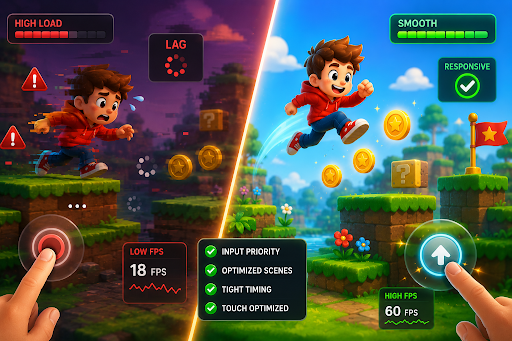
Unresponsive controls turn an exciting game into a frustrating one. When a tap doesn’t register right away, a character moves late, or a swipe feels delayed, players quickly lose interest.
In a no code game maker, controls can become sluggish because the system creates new content while also handling player inputs, which adds extra work for the device. Many makers notice this during busy moments or on mobile devices where processing power is limited.
The good news is that most control issues can be fixed with clear adjustments and simple tests. This guide explains why controls stop responding well and walks through step by step solutions that restore smooth, immediate feedback.
Why Controls Become Unresponsive
Controls feel unresponsive when there’s a delay between the player’s action and the game’s reaction. In games that generate content on the fly, the system sometimes spends too much time creating new objects or calculating physics while trying to read player inputs at the same time. This competition for processing power creates small but noticeable lags.
Other common causes include too many calculations happening in a single frame, heavy visual effects that slow down the entire game, and settings that aren’t optimized for the device being used. On phones, background apps or low battery modes can also reduce responsiveness. Touch controls are especially sensitive to these issues since players expect instant reactions when they tap or swipe.
Identifying the exact moments when controls feel off helps you target the right fixes. Pay attention to whether the problem happens all the time or only during crowded or complex scenes.
4 Main Causes of Unresponsive Controls
- Overloaded Processing. The game tries to generate too much new content and handle controls at the same time, leaving less power for quick input reading.
- Heavy Visuals and Effects. Too many moving objects, particles, or detailed animations take time to draw, which delays the registration of player actions.
- Incorrect Timing Settings. The game may wait too long between checking for inputs or use values that don’t match the device’s natural speed.
- Device and Platform Differences. Controls that work well on a powerful computer can feel delayed on average phones or tablets due to differences in processing power.
Checking Controls on Different Devices
Begin by testing your game on the devices players are most likely to use. Open the game on a phone, a tablet, and a computer, and try both touch and keyboard or mouse inputs. Play in short bursts and long sessions to see if responsiveness changes over time.
Note exactly when the controls feel delayed. Does the character start moving late after you press a key? Do taps on buttons take a second to register? Does swiping feel smooth on one device but sticky on another? Record the frame rate during these moments, since low frame rates often make controls feel worse.
Compare results across devices. A problem that appears only on mobile usually points to memory or power saving issues, while problems on all devices suggest a deeper setting that needs adjustment.
4 Quick Fixes for Responsive Controls
- Prioritize input reading. Tell the tool to check for player actions first in every frame before handling generation or visual updates.
- Simplify busy scenes. Reduce the number of objects or effects on screen at once so the game has more power available for reading controls.
- Tighten timing values. Lower any delay settings between input checks and make movement start immediately when the player acts.
- Optimize for touch devices. Make tap areas larger and ensure swipe detection works cleanly even during fast movements or generated changes.
Improving Movement and Action Response
Character movement is often the most noticeable control area. Make sure the player object starts moving the instant a key is pressed or a swipe begins. Add a small amount of smooth acceleration if needed, but keep the initial response sharp so the game never feels floaty.
For jumping or special actions, ensure the input is read and acted upon within the same frame if possible. If the character still feels slow to react, reduce any calculations happening at the exact moment of the action, such as complex collision checks.
Test movement across different generated terrains, since a control scheme that works on flat ground might feel delayed when the generation system adds platforms or obstacles. Adjust values until movement feels consistent no matter what the game creates.
Fixing Touch and Button Controls
Touch controls need special attention because players expect perfect accuracy on phones. Make tap targets for buttons and interactive objects large enough for fingers, especially during fast gameplay, and place important buttons in easy to reach areas of the screen.
Improve swipe detection by allowing a small margin for imperfect finger movements. The game should recognize a swipe even if the finger path isn’t perfectly straight. During busy moments, keep touch reading active and responsive by lowering the detail of background elements.
Add clear visual feedback when a tap registers, such as a quick highlight or sound, so players know the game received their input even if the action takes a tiny moment to appear. This feedback greatly reduces the feeling of unresponsiveness.
4 Key Areas to Improve Control Feel
- Input Priority. Ensure player actions are checked before other game systems update so there’s no waiting.
- Visual Feedback. Show immediate signs that the input was received, even before the full action completes.
- Consistency Across Content. Make sure controls behave the same way in every generated level or situation.
- Device Adaptation. Adjust sensitivity and timing automatically based on whether the game runs on touch or keyboard devices.
Testing Controls with Real Players
After making changes, test with people who’ve never played your game before. Ask them to perform common actions and tell you whether anything felt delayed or awkward. Watch their hands on the screen or keyboard to see if they repeat taps because the first one didn’t register.
Playtest in different environments, such as with low battery or while other apps run in the background, since these real world conditions often reveal problems that clean tests miss. Re test after every major adjustment, since a fix that improves one action might accidentally slow down another.
See It Done Right
A good example of smooth and responsive controls can be found in Purr-fect Brew Cafe, where tapping and dragging to serve drinks feels immediate and satisfying even as new customers and orders appear. Notice how every touch registers cleanly and actions happen without noticeable delay, and use the same attention to instant feedback when fixing controls in your own project.
Preventing Future Control Problems
Build habits that keep controls responsive as your game grows. Always test newly generated features for their effect on input speed right after adding them, and set a rule to keep the most important input checks at the highest priority. Limit the total number of calculations happening in each frame and spread heavy generation work across multiple frames when possible. Regularly test on average devices rather than only on powerful ones.
Final Thoughts
Unresponsive controls usually come from overloaded processing, heavy visuals, timing issues, or device differences. By checking your game on real devices, applying the four quick fixes, improving movement and touch response, and focusing on the four key areas, you can make every input feel immediate and satisfying.
Whether you build your games with Astrocade or other no code tools, these practical steps help you deliver smooth controls that keep players engaged and happy. Start by testing your current controls on a phone and a computer, then apply the first two quick fixes today. Measure the difference and keep refining until taps, swipes, and movements feel perfectly natural.